SIDEBAR
»
S
I
D
E
B
A
R
«
More Visualization Links on Twitter
Jan 23rd, 2010 by Tom Johnson

Thanks to Steve Doig for the pointer to….

More Visualization Links on Twitter

By: Jeff Clark    Date: Sat, 23 Jan 2010

In a recent post I showed the Top 20 Individual Data Visualizations Mentioned on Twitter and remarked that many of the most frequently mentioned twitter links were to collections of visualizations. Shown below is a meta list of the top collection-type data visualization or infographic links.

Top Collections of Data Visualization Links

  1. 50 Great Examples of Data Visualization – Webdesigner Depot

  2. Data Visualization and Infographics Resources – Smashing Magazine

  3. 15 Stunning Examples of Data Visualization – Web Design Ledger

  4. 20 Essential Infographics & Data Visualization Blogs – Inspired Magazine

  5. Is Information Visualization the Next Frontier for Design? – Fast Company

  6. 28 Rich Data Visualization Tools – InsideRIA

  7. The Beauty of Infographics and Data Visualization – Abduzeedo

  8. 50 Great Examples of Data Visualization – Sun Yat-Sen University

  9. 20 Inspiring Uses of Data Visualization – SingleFunction

  10. 5 Best Data Visualization Projects of the Year – 2009 – FlowingData

  11. Data Visualization: Stories for the Information Age – BusinessWeek

  12. Data Visualization: Modern Approaches – Smashing Magazine

  13. The 21 Heroes of Data Visualization: – BusinessWeek

  14. 20+ CSS Data Visualization Techniques – tripwire magazine

  15. MEDIA ARTS MONDAYS:Data Visualization Tools – PSFK

  16. 37 Data-ish Blogs You Should Know About – FlowingData

  17. 5 Best Data Visualization Projects of the Year – FlowingData

  18. 30 new outstanding examples of data visualization – FrancescoMugnai.com

  19. Infosthetics: the beauty of data visualization – PingMag

  20. 5 Beautiful Social Media Videos – Mashable

Here are the top product type links in the field according to Twitter data between March 24 and Dec 31, 2009.

Top Data Visualization Product Links Mentioned on Twitter

  1. Axiis : Data Visualization Framework

  2. The JavaScript InfoVis Toolkit

  3. Microsoft – What is Pivot?

  4. Many Eyes

  5. Roambi – Your Data, iPhone-Style

  6. Flare – Data Visualization for the Web

  7. Gapminder.org – For a fact based world view.

  8. SpatialKey – Location Intelligence for Decision Makers

  9. Tableau Software – Data Visualization and Business Intelligence

  10. SIMILE Widgets

and finally:

Top Data Visualization Websites Mentioned on Twitter

  1. Information Is Beautiful | Ideas, issues, concepts, subjects – visualized!

  2. FlowingData | Data Visualization and Statistics

  3. Information Aesthetics | Information Visualization & Visual Communication

  4. visualcomplexity.com | A visual exploration on mapping complex networks

  5. DataViz on Tumblr


Charting the Beatles
Main


How to Make a Heatmap – a Quick and Easy Solution
Jan 21st, 2010 by analyticjournalism

Thanks to Nathan at Flowing Data:

How to Make a Heatmap – a Quick and Easy Solution

How to Make a Heatmap – a Quick and Easy Solution

How do you make a heatmap? This came from kerimcan in the FlowingData forums, and krees followed up with a couple of good links on how to do them in R. It really is super easy. Here's how to make a heatmap with just a few lines of code, but first, a short description of what a heatmap is.

The Heatmap

In case you don't know what a heatmap is, it's basically a table that has colors in place of numbers. Colors correspond to the level of the measurement. Each column can be a different metric like above, or it can be all the same like this one. It's useful for finding highs and lows and sometimes, patterns.

On to the tutorial.

Step 0. Download R

We're going to use R for this. It's a statistical computing language and environment, and it's free. Get it for Windows, Mac, or Linux. It's a simple one-click install for Windows and Mac. I've never tried Linux.

Did you download and install R? Okay, let's move on.

Step 1. Load the data

Like all visualization, you should start with the data. No data? No visualization for you.

For this tutorial, we'll use NBA basketball statistics from last season that I downloaded from databaseBasketball. I've made it available here as a CSV file. You don't have to download it though. R can do it for you.

I'm assuming you started R already. You should see a blank window.
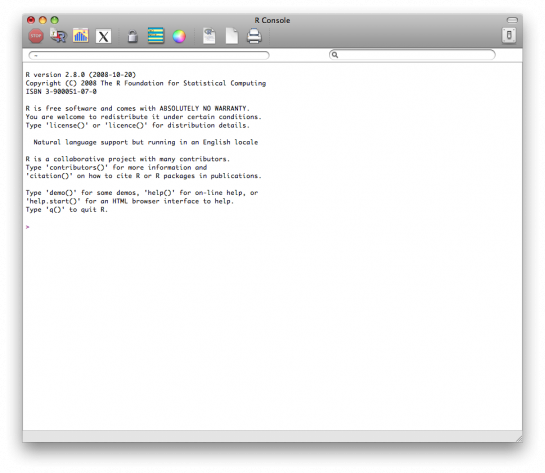
Now we'll load the data using read.csv().

nba <- read.csv("http://datasets.flowingdata.com/ppg2008.csv", sep=",")

We've read a CSV file from a URL and specified the field separator as a comma. The data is stored in nba.

Type nba in the window, and you can see the data.
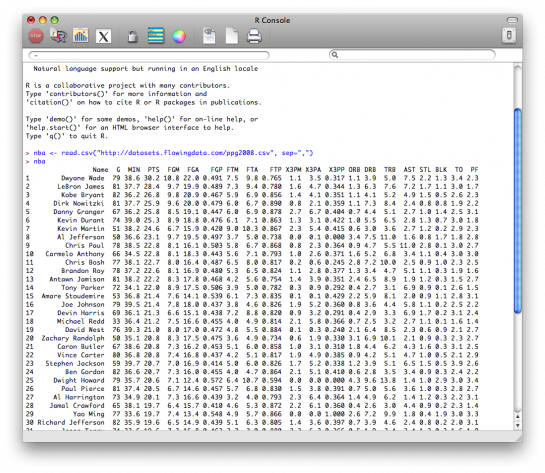
Step 2. Sort data

The data is sorted by points per game, greatest to least. Let's make it the other way around so that it's least to greatest.

nba <- nba[order(nba$PTS),]

We could just as easily chosen to order by assists, blocks, etc.

Step 3. Prepare data

As is, the column names match the CSV file's header. That's what we want.

But we also want to name the rows by player name instead of row number, so type this in the window:

row.names(nba) <- nba$Name

Now the rows are named by player, and we don't need the first column anymore so we'll get rid of it:

nba <- nba[,2:20]

Step 4. Prepare data, again

Are you noticing something here? It's important to note that a lot of visualization involves gathering and preparing data. Rarely, do you get data exactly how you need it, so you should expect to do some data munging before the visuals. Anyways, moving on.

The data was loaded into a data frame, but it has to be a data matrix to make your heatmap. The difference between a frame and a matrix is not important for this tutorial. You just need to know how to change it.

nba_matrix <- data.matrix(nba)

Step 5. Make a heatmap

It's time for the finale. In just one line of code, build the heatmap (remove the line break):

nba_heatmap <- heatmap(nba_matrix, Rowv=NA, Colv=NA,

col = cm.colors(256), scale="column", margins=c(5,10))

You should get a heatmap that looks something like this:
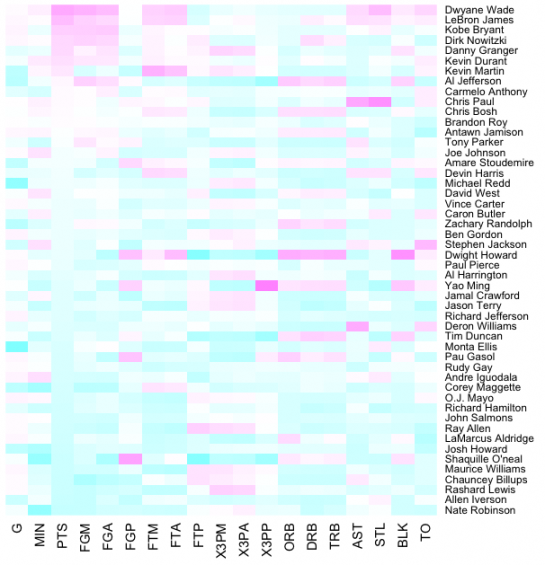
Step 6. Color selection

Maybe you want a different color scheme. Just change the argument to col, which is cm.colors(256) in the line of code we just executed. Type ?cm.colors for help on what colors R offers. For example, you could use more heat-looking colors:

nba_heatmap <- heatmap(nba_matrix, Rowv=NA, Colv=NA,

col = heat.colors(256), scale="column", margins=c(5,10))
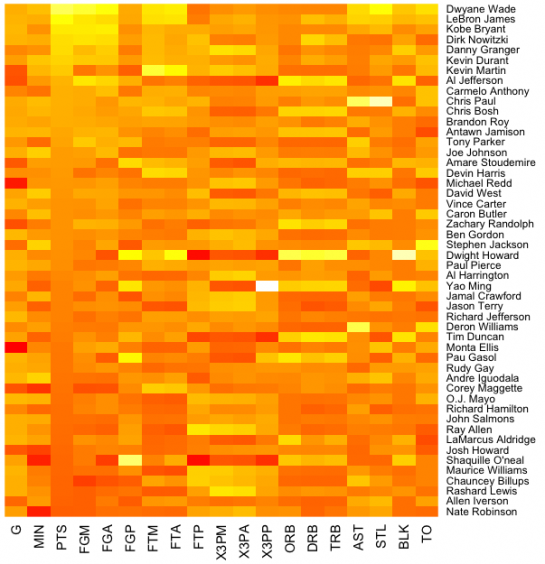
For the heatmap at the beginning of this post, I used the RColorBrewer library. Really, you can choose any color scheme you want. The col argument accepts any vector of hexidecimal-coded colors.

Step 7. Clean it up – optional

If you're using the heatmap to simply see what your data looks like, you can probably stop. But if it's for a report or presentation, you'll probably want to clean it up. You can fuss around with the options in R or you can save the graphic as a PDF and then import it into your favorite illustration software.

I personally use Adobe Illustrator, but you might prefer Inkscape, the open source (free) solution. Illustrator is kind of expensive, but you can probably find an old version on the cheap. I still use CS2. Adobe's up to CS4 already.

For the final basketball graphic, I used a blue color scheme from RColorBrewer and then lightened the blue shades, added white border, changed the font, and organized the labels in Illustrator. Voila.
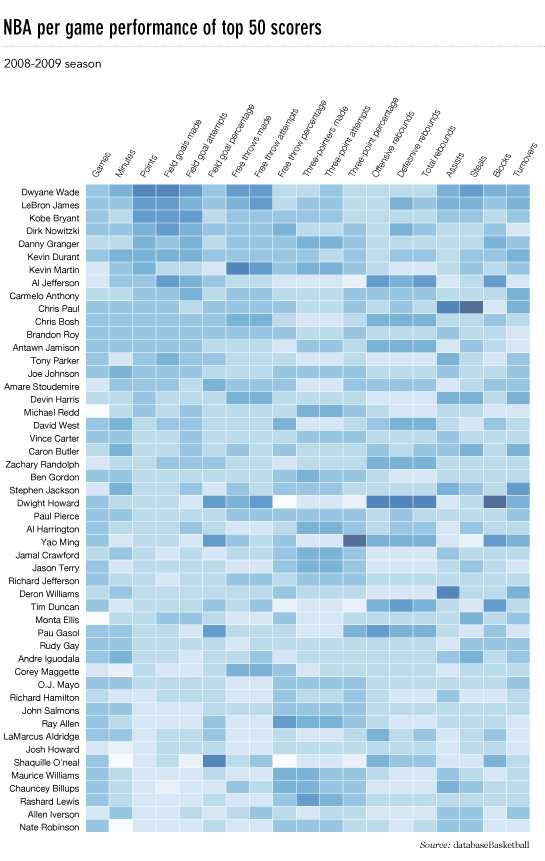
Rinse and repeat to use with your own data. Have fun heatmapping.


So what ARE people talking abouit
Jan 14th, 2010 by analyticjournalism

One of the things we've noticed about journalism operation that allow comments and discussion on their web pages is that few take the time to analyze that interchange and content.  Partially, that's because of a lack of tools.  The “tldr Project” is a step toward meeting that challenge.

Recent years have seen a proliferation of large-scale discussion spaces on the internet. With increasing user participation, it is not uncommon to find discussion spaces with hundreds to thousands of messages/participants. This phenomenon can be observed on a wide variety of websites – news outlets, blogs, social media websites, community websites and support forums. While most of these discussion spaces are able to support small discussions, their effectiveness is greatly reduced as the discussions grow larger. Users participating in these discussions are overwhelmed by the sheer amount of information presented, and the systems that support these conversations are lacking in functionality that lets users navigate to content of interest.

tldr is an application for navigating through large-scale online discussions. The application visualizes structures and patterns within ongoing conversations to let the user browse to content of most interest. In addition to visual overviews, it also incorporates features such as thread summarization, non-linear navigation, multi-dimensional filtering, and various other features that improve the experience of participating in large-discussions.

The current version of the application is functional for discussions on Reddit. This application will be released shortly. Until the application can be released, here is a video that presents many of the unique features built into the application. For best results, watch the video with HD turned on, or download a high-resolution version from Vimeo. More soon!

Here is a sample of patterns seen with the visualizations built into the application. Each of these visualizations present unique insight into the nature of the conversation, and help in discerning points of interest within a large conversation.


Narayan, Srikanth and Cheshire, Coye – “Not too long to read: The tldr Interface for Exploring and Navigating Large-Scale Discussion Spaces”. To appear in The 43rd Annual Hawaii International Conference on System Sciences – Persistent Conversations Track – Jan 2010

»  Substance:WordPress   »  Style:Ahren Ahimsa